how to share wifi password securely and efficiently
Table of Contents
- Understanding the Basics of Sharing WiFi Passwords
- Technical Process of WiFi Password Storage and Transmission
- Role of WiFi Routers and Encryption Protocols
- Pre-Shared Keys (PSK) vs. Enterprise Authentication
- Conversion of WiFi Passwords to Hexadecimal and ASCII Formats
- Risks of Default Router Passwords and Best Practices for Changing Them
- Step-by-Step Methods to Share WiFi Passwords
- Sharing WiFi Passwords via QR Codes
- Peer-to-Peer Sharing with Nearby Share (Google) and AirDrop (Apple)
- Saving WiFi Passwords to Cloud Services
- Manual WiFi Password Entry Across Platforms
- Using Third-Party Apps to Share WiFi Passwords
- Sharing WiFi Passwords via SMS or Messaging Apps
- Accessing WiFi in Public Networks (Hotels, Airports)
- Advanced Techniques for Secure WiFi Password Sharing
- Temporary WiFi Passwords and Implementation Methods
- Dynamic Keys via RADIUS Servers and Enterprise Solutions
- Guest Networks for Isolated WiFi Access
- Using VPNs to Securely Share WiFi Access
- Encrypting WiFi Passwords Before Sharing
- Troubleshooting Common Issues When Sharing WiFi Passwords
- Diagnostic Checklist for Connection Failures After Sharing WiFi Passwords
- Resetting a Forgotten WiFi Password on Routers
- Device-Specific Connection Failures After Entering the Correct Password
- Resolving WiFi Password Errors on Different Operating Systems
- Security Best Practices for Sharing WiFi Passwords
- Strong WiFi Password Guidelines
- Detecting and Preventing WiFi Hacking Attempts
- Risks of Publicly Exposing WiFi Passwords
- Monitoring WiFi Usage for Unauthorized Access
- Disabling WPS and Enhancing Network Security
- Securing Router Admin Panels and Enabling Two-Factor Authentication
- Regularly Updating and Rotating WiFi Passwords
- Creative and Alternative Ways to Share WiFi Access
- Physical Methods for WiFi Password Sharing in Shared Spaces
- WiFi Password Sharing via Encrypted Group Chats
- Bluetooth and NFC for Contactless WiFi Credential Transfer
- Email with Encrypted Attachments for Secure WiFi Password Distribution
- Custom WiFi Password Sharing Solutions for Businesses and Communities
In an era where connectivity defines convenience, sharing a WiFi password has evolved from a simple task into a critical security and usability challenge. Whether in a bustling coffee shop, a shared office space, or a crowded household, the act of granting network access exposes vulnerabilities that demand attention. Understanding the mechanics behind WiFi authentication—from encryption protocols like WPA3 to the risks of default passwords—reveals why a seemingly routine action can either fortify digital security or leave networks exposed to exploits.
The rise of smart devices, IoT ecosystems, and remote work has amplified the need for seamless yet secure WiFi sharing methods. From QR codes that eliminate manual errors to cloud-based solutions that sync credentials across devices, modern techniques offer convenience without sacrificing protection. Yet, missteps—such as relying on default router settings or broadcasting passwords in unsecured channels—can turn shared access into a gateway for cyber threats. This guide dissects the technical, ethical, and practical layers of WiFi password sharing, equipping users with the knowledge to balance accessibility with robust security.
Understanding the Basics of Sharing WiFi Passwords
WiFi passwords serve as the first line of defense in securing wireless networks, acting as cryptographic keys that authenticate devices before granting access. The process involves a complex interplay between hardware, encryption protocols, and authentication mechanisms, all designed to prevent unauthorized entry. At its core, sharing a WiFi password requires understanding how routers encode, transmit, and verify credentials—whether through pre-shared keys (PSK) or enterprise-level authentication. This section explores the technical foundations of WiFi security, from encryption standards to the risks of default configurations, while debunking common misconceptions that undermine network protection.
Technical Process of WiFi Password Storage and Transmission
When a user connects to a WiFi network, the password undergoes a transformation to ensure secure communication between the device and the router. The router, acting as the network’s gateway, stores the password in an encrypted format, typically as a pre-shared key (PSK) for home networks or within an authentication server for enterprise setups. During the connection process, the device and router perform a four-way handshake (in WPA2/WPA3) to authenticate each other using the password. This handshake involves exchanging encrypted messages to derive a Pairwise Master Key (PMK), which is then used to encrypt all subsequent data traffic via protocols like AES (Advanced Encryption Standard).
The password itself is not transmitted in plaintext; instead, it is converted into a hexadecimal or ASCII representation before being processed. For example, a password like `Secure@123` is hashed using algorithms such as PBKDF2 (Password-Based Key Derivation Function 2) or SAE (Simultaneous Authentication of Equals) in WPA3, producing a fixed-length key. This key is then used to generate session-specific encryption keys for secure data transmission. The entire process relies on cryptographic principles to ensure that even if an attacker intercepts the handshake, reversing the password remains computationally infeasible.
Role of WiFi Routers and Encryption Protocols
WiFi routers function as the central hub for wireless networks, managing authentication, encryption, and data routing. Their security capabilities are defined by the encryption protocols they support, with modern routers prioritizing WPA3 for its enhanced protections. Below is a comparative table of major WiFi encryption standards, highlighting their security strengths, compatibility, and vulnerabilities:
| Protocol | Security Strength | Compatibility | Vulnerability Risks |
|---|---|---|---|
| WEP (Wired Equivalent Privacy) | Weak; uses 64-bit or 128-bit keys with static encryption. | Universal (older devices), but obsolete. | Highly vulnerable to brute-force and dictionary attacks; keys can be cracked in minutes. |
| WPA (WiFi Protected Access) | Moderate; introduces dynamic keys via TKIP (Temporal Key Integrity Protocol). | Widely supported, but outdated for modern use. | Vulnerable to attacks like chopchop and KRACK; TKIP is considered insecure. |
| WPA2 (WPA2-PSK/AES) | Strong; uses AES-CCMP for encryption and robust four-way handshake. | Near-universal support; default for most modern routers. | Vulnerable to KRACK (key reinstallation attacks) and brute-force if weak passwords are used. |
| WPA3 (WPA3-Personal/Enterprise) | Most secure; eliminates vulnerabilities in WPA2 handshake via SAE (Dragonfly Key Exchange) and forward secrecy. | Growing adoption; requires newer hardware and firmware. | Minimal known vulnerabilities; resistant to offline brute-force attacks. |
Key Insight: WPA3 introduces Simultaneous Authentication of Equals (SAE), which replaces the vulnerable four-way handshake with a more secure key exchange method. This ensures that even if an attacker captures the handshake, they cannot derive the password without significant computational power.
Pre-Shared Keys (PSK) vs. Enterprise Authentication
WiFi networks primarily use two authentication frameworks: Pre-Shared Key (PSK) and enterprise authentication. The choice between them depends on the network’s scale, security requirements, and user management needs.
- Pre-Shared Key (PSK): Used in home and small office networks, PSK relies on a single password shared among all authorized devices. This method is simple but introduces risks if the password is compromised or guessed. PSK is further divided into: - WPA2-PSK: Uses a static password hashed with PBKDF2 to generate the PMK. - WPA3-PSK: Enhances security with SAE, making brute-force attacks impractical.
- Enterprise Authentication: Deployed in corporate or large-scale networks, this method uses 802.1X authentication, where each user has a unique credential (e.g., username/password or digital certificates). The router communicates with a RADIUS server to verify credentials, enabling granular access control. Protocols like EAP-TLS or EAP-TTLS provide stronger security but require infrastructure support.
Flowchart of PSK Authentication Process: 1. Device Initiates Connection: User enters the WiFi password. 2. Router Hashes Password: Converts the password into a PMK using PBKDF2 (WPA2) or SAE (WPA3). 3. Four-Way Handshake (WPA2) / SAE Key Exchange (WPA3): Device and router exchange encrypted messages to derive session keys. 4. Encrypted Communication: Data is transmitted using AES encryption with dynamically generated keys. 5. Access Granted: Device gains network access if authentication succeeds.
Visualization Note: The flowchart would depict arrows between steps, with annotations for WPA2 vs. WPA3 differences (e.g., "SAE replaces handshake in WPA3").
Conversion of WiFi Passwords to Hexadecimal and ASCII Formats
WiFi passwords are stored in routers as hashed values, not plaintext, to prevent exposure. The conversion process involves multiple steps:
1. Plaintext Input: User enters a password (e.g., `MySecurePass123!`). 2. ASCII Conversion: The password is translated into ASCII characters (e.g., `M` = 77, `y` = 121 in hexadecimal). 3. Hashing Algorithm: The password is processed using: - PBKDF2-HMAC-SHA1 (WPA2): Applies a pseudorandom function to the password and a salt (router-specific value) to produce a 256-bit PMK. - SAE (Dragonfly) (WPA3): Uses a password-authenticated key exchange to derive keys without transmitting the password. 4. Hexadecimal Representation: The final PMK is stored as a hexadecimal string (e.g., `a1b2c3...`), which is device-specific and cannot be reversed without the original password.
Example: A password like `HelloWorld` might be hashed into: PMK (WPA2-PSK): 1a2b3c4d5e6f7890abcdef1234567890abcdef1234567890abcdef12345678 This hexadecimal string is what routers use to authenticate devices, not the original password.
Risks of Default Router Passwords and Best Practices for Changing Them
Default router passwords, often printed on the device or provided in manuals, pose significant security risks. Manufacturers use generic credentials (e.g., `admin/admin` or `12345678`) for convenience, but these are easily exploited by attackers. Common risks include: - Unauthorized Access: Default passwords are widely known and can be brute-forced in seconds. - Botnet Recruitment: Hackers exploit default credentials to turn routers into DDoS zombies (e.g., Mirai botnet attacks). - Firmware Exploits: Default passwords may grant access to router settings, allowing attackers to install malicious firmware.
Best Practices for Securing Router Passwords: - Change Default Credentials Immediately: Use
Step-by-Step Methods to Share WiFi Passwords
Sharing a WiFi password efficiently and securely is essential in modern connectivity, whether for guests, roommates, or colleagues. Each method offers distinct advantages, from ease of use to enhanced security features. Below are detailed guides for the most common and effective techniques, including QR codes, peer-to-peer sharing, cloud integration, manual entry, third-party tools, messaging, and public network access. Additionally, a comparison table and troubleshooting guide ensure users can resolve connectivity issues and manage network access effectively.
Sharing WiFi Passwords via QR Codes
WiFi QR codes encode network details (SSID, password, encryption type) into a scannable format, eliminating manual password entry. This method is widely supported on Android and iOS devices and reduces human error.
Generating a WiFi QR Code: - On Android: Use built-in settings (Android 10+) or third-party apps like WiFi QR Code Generator. Navigate to Settings > Network & Internet > WiFi > WiFi QR Code, then scan the generated code on another device. - On iOS: iOS does not natively support QR generation, but third-party apps like QR Code WiFi or online tools (e.g., QR Code Generator) can create the code. Enter the SSID, password, and security type (WPA2/WPA3), then download and share the QR image.
Scanning the QR Code: - Android: Open the camera app, point at the QR code, and tap the notification prompt to connect automatically. - iOS: Use the built-in Camera app, scan the QR code, and confirm the connection in the WiFi settings.
Security Note: QR codes are vulnerable if intercepted during sharing. Use encrypted messaging apps or direct device transfer to mitigate risks.
Peer-to-Peer Sharing with Nearby Share (Google) and AirDrop (Apple)
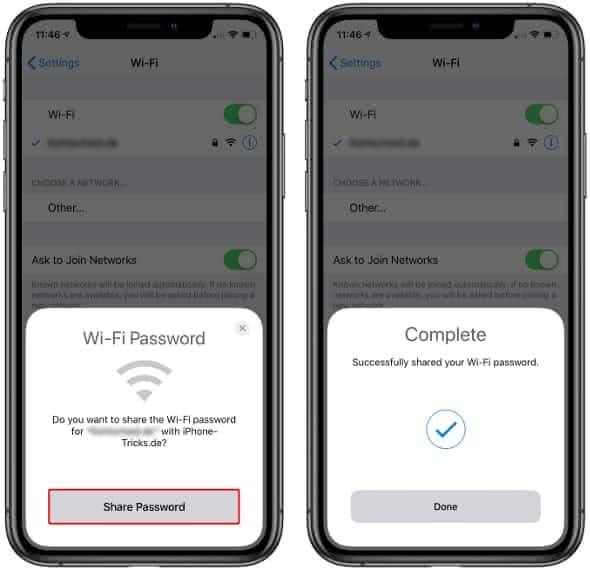
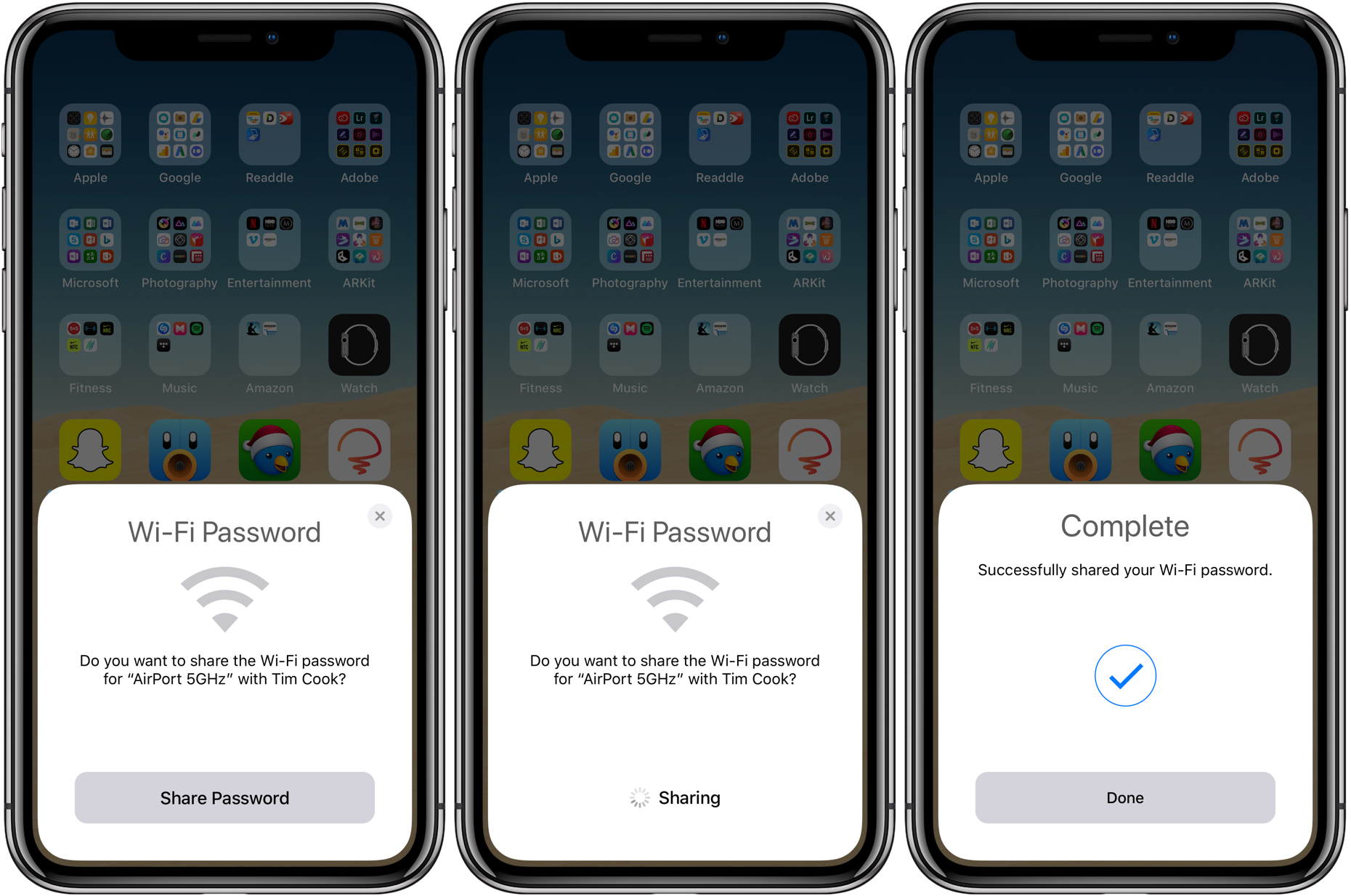
Nearby Share (Android) and AirDrop (iOS/macOS) leverage Bluetooth and WiFi Direct to share WiFi credentials securely without manual input. These methods are ideal for users within close proximity.
Nearby Share (Android): - Compatibility: Requires Android 6.0+ and Nearby Share enabled (default on most devices). - Steps: 1. On the host device, open Settings > Network & Internet > WiFi > WiFi QR Code (or use WiFi Password Share app). 2. On the guest device, enable Nearby Share and select the host device from the list. 3. Approve the connection request; the password is transferred automatically.
AirDrop (Apple Ecosystem): - Compatibility: iOS 7+/macOS 10.7+ with WiFi and Bluetooth enabled. - Steps: 1. On the host device, enable AirDrop in Control Center (swipe down from the top-right corner). 2. On the guest device, ensure AirDrop is set to "Contacts Only" or "Everyone" and select the host device from the AirDrop menu. 3. The host device sends the WiFi password via AirDrop; the guest device connects automatically after entering the password in settings.
Troubleshooting: - Ensure both devices have Bluetooth and WiFi enabled. - Restart AirDrop/Nearby Share if the connection fails. - For Android, update to the latest version of Google Play Services if Nearby Share is unavailable.
Saving WiFi Passwords to Cloud Services
Cloud-based password managers (e.g., iCloud Keychain, Google Smart Lock) sync WiFi credentials across devices, streamlining access for users with multiple gadgets. This method is secure but requires an active internet connection to sync.
iCloud Keychain (Apple Devices): - Setup: Enable iCloud Keychain in Settings > [Your Name] > iCloud > Keychain. - Automatic Sync: When connecting to a new WiFi network on one device, the password syncs to other Apple devices (iPhone, iPad, Mac) signed in with the same Apple ID. - Accessing Passwords: On a Mac, open System Preferences > Keychain Access and locate the WiFi password under "Passwords".
Google Smart Lock (Android): - Setup: Enable Google Smart Lock in Settings > Security > Smart Lock > On-screen passwords > WiFi networks. - Syncing: After entering a WiFi password on one Android device, it syncs to other devices linked to the same Google account. - Limitations: Requires Android 9+ and may not work on all routers (e.g., those with hidden SSIDs).
Security Considerations: - Use a strong Apple ID/Google account password to prevent unauthorized access. - Avoid enabling Keychain/Smart Lock sync on public or untrusted networks.
Manual WiFi Password Entry Across Platforms
For users without peer-to-peer or cloud sync options, manually entering the WiFi password remains the most universally compatible method. Below are platform-specific instructions.
Windows 10/11: 1. Open Settings > Network & Internet > WiFi. 2. Select the network and click Connect. 3. Enter the password in the prompt and confirm.
macOS: 1. Click the WiFi icon in the menu bar and select the network. 2. Enter the password in the login window and click Join.
Android: 1. Open Settings > Network & Internet > WiFi. 2. Tap the network and enter the password in the dialog box.
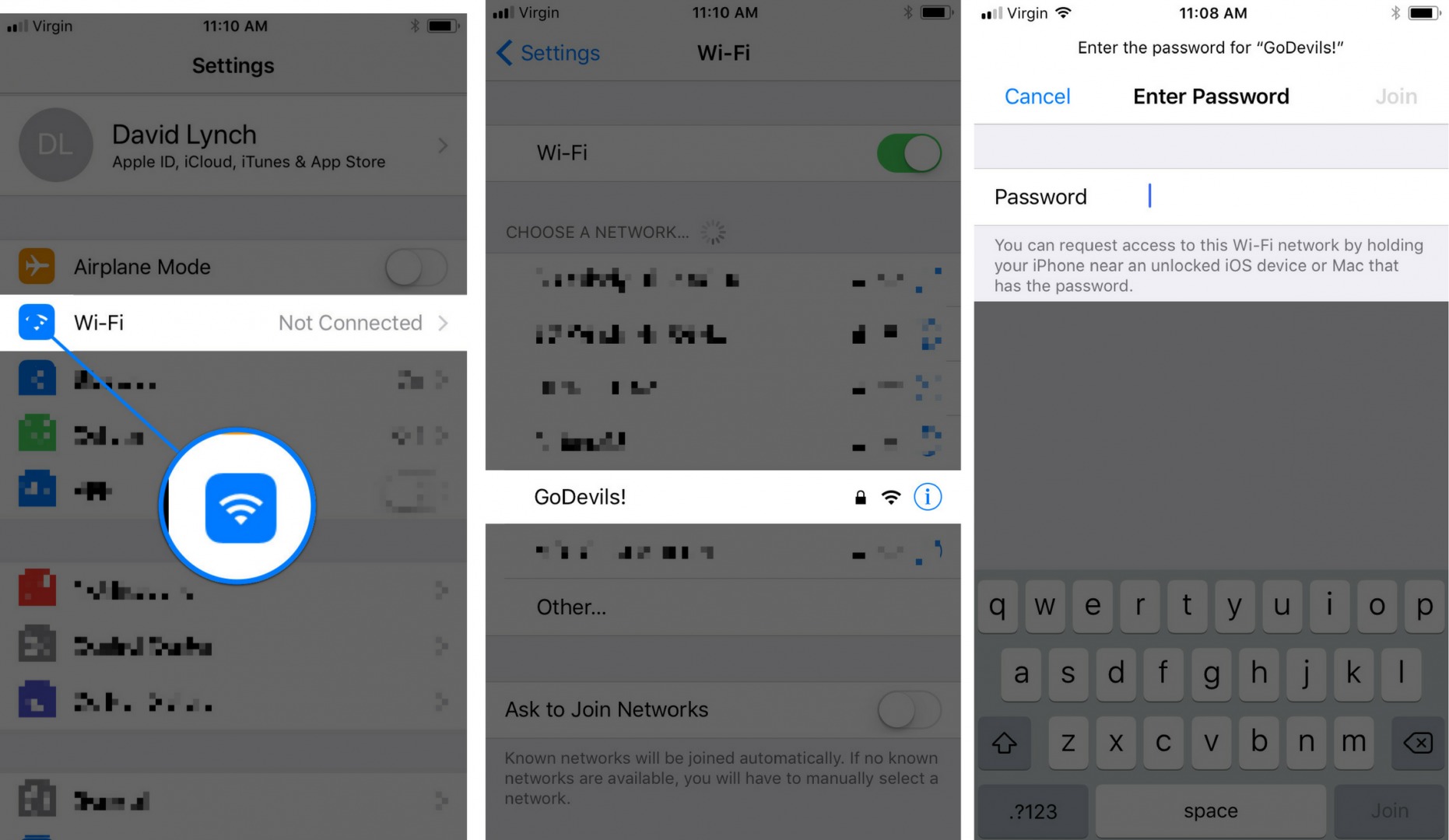
iOS: 1. Open Settings > WiFi and tap the network. 2. Enter the password and tap Join.
Pro Tip: - On Windows, saved passwords can be viewed in Control Panel > Network and Sharing Center > Manage Wireless Networks (right-click the network > Status > Wireless Properties). - On macOS, passwords are stored in Keychain Access under "Passwords".
Using Third-Party Apps to Share WiFi Passwords
Third-party applications simplify WiFi sharing with additional features like password encryption and multi-device management. Popular options include WiFi Password Share (Android) and QR Code WiFi (cross-platform).
Steps for WiFi Password Share (Android): 1. Install the app from the Play Store and grant WiFi access permission. 2. Select the network and tap Share Password. 3. Choose a sharing method (QR code, Nearby Share, or direct transfer). 4. The guest device scans the QR code or accepts the Nearby Share request to auto-connect.
Security Risks and Mitigations: - Risk: Apps may log passwords or expose them if not encrypted. - Mitigation: - Use apps with open-source code (e.g., F-Droid versions). - Avoid apps requiring unnecessary permissions (e.g., contacts, SMS). - Prefer offline QR code generation to minimize data exposure.
Sharing WiFi Passwords via SMS or Messaging Apps
Sending WiFi passwords via SMS or apps like WhatsApp, Telegram, or Facebook Messenger is convenient but poses security risks if the message is intercepted or stored on an unsecured device.
Steps: 1. Compose a new message in the preferred app. 2. Type the SSID and password (e.g., "MyWiFi: Password123!"). 3. Send the message to the recipient. 4. The recipient manually enters the details in their device’s WiFi settings.
Security Best Practices: - Avoid SMS: SMS messages can be intercepted or stored on carrier servers. - Use Encrypted Apps: Prefer Signal, Telegram (Secret Chats), or WhatsApp for end-to-end encryption. - Temporary Passwords: For public sharing, generate a one-time password (e.g., via Google Authenticator) and share it via secure channels. - Disable Message Storage: Configure apps to not save sent messages in chats.
Accessing WiFi in Public Networks (Hotels, Airports)
Public networks often require temporary credentials or guest portal logins. Below are steps to connect securely:
Guest Portals (Hotels/Airports): 1. Connect to the network (e.g., "HotelWiFi"). 2. Open a web browser and follow the redirect to the login page. 3. Enter credentials (usually provided by staff) and accept terms of service. 4. The network may assign an IP address automatically or require manual confirmation.
Temporary Credentials: - Some networks (e.g., Starbucks, airports) provide time-limited passwords via email or kiosks. - Save the password temporarily in your device’s WiFi settings to avoid re-entry.
Security Warning: - Public networks are unencrypted and vulnerable to man-in-the-middle attacks. - Use a VPN (e.g., ProtonVPN, NordVPN) to encrypt traffic.
Advanced Techniques for Secure WiFi Password Sharing
Securing WiFi networks while sharing access with guests or family members requires more than basic password sharing methods. Advanced techniques leverage dynamic authentication, network segmentation, encryption, and hardware solutions to minimize risks such as unauthorized access, data breaches, or bandwidth misuse. These methods are particularly useful for users managing high-traffic networks, enterprise environments, or households with frequent visitors. By implementing temporary credentials, VPNs, or hardware-based isolation, users can balance convenience with robust security, ensuring that shared WiFi remains both accessible and protected.
Temporary WiFi Passwords and Implementation Methods
Temporary WiFi passwords limit exposure by generating time-sensitive or single-use credentials, reducing the risk of long-term unauthorized access. Modern routers and enterprise-grade solutions support features like WiFi Protected Setup (WPS) with time limits, dynamic PIN generation, or integration with RADIUS (Remote Authentication Dial-In User Service) servers. For home users, routers from brands like Asus, TP-Link, or Netgear offer temporary password options in their admin panels, often under "Guest Network" or "Access Control" settings. Enterprise solutions, such as those from Cisco or Aruba, provide granular control via 802.1X authentication, allowing IT administrators to set expiration times or restrict access by device MAC address.
Implementation Steps for Temporary Passwords on Home Routers: 1. Access the router’s admin panel via `192.168.1.1` or the manufacturer’s default gateway. 2. Navigate to Wireless Settings > Security > Temporary Password (if available). 3. Set an expiration time (e.g., 24 hours) or enable single-use mode. 4. Generate the password and share it via email or a secure messaging app. 5. Monitor connected devices in DHCP Client List to revoke access after the timeframe.
For users without built-in temporary password features, third-party tools like WiFi Password Generator (e.g., WiFi Password Generator) can create random, time-limited passwords. However, these require manual revocation after use.
Dynamic Keys via RADIUS Servers and Enterprise Solutions
Dynamic keys eliminate static password risks by generating unique credentials for each connection, often tied to user identities or devices. RADIUS servers authenticate users centrally, assigning temporary keys that expire after use or within a predefined window. This method is standard in corporate networks, universities, and public WiFi hotspots but can be adapted for home use with open-source RADIUS tools like FreeRADIUS or Microsoft NPS (Network Policy Server).
- Setting Up RADIUS for Dynamic Keys:
- Install a RADIUS server (e.g., FreeRADIUS) on a local machine or cloud service.
- Configure the router to forward authentication requests to the RADIUS server via 802.1X/EAP protocols.
- Define user policies in the RADIUS server to generate time-limited keys (e.g., using PAP, CHAP, or EAP-TLS).
- Share credentials via a portal system (e.g., captive portal) where guests enter details to receive a one-time key.
- Enterprise-Grade Alternatives:
- Cisco Identity Services Engine (ISE): Supports dynamic VLAN assignment and key rotation.
- Aruba ClearPass: Integrates with Active Directory for role-based access control.
- Ubiquiti UniFi: Offers RADIUS-based guest portals with customizable key lifespans.
- Security Considerations:
- Ensure the RADIUS server uses TLS encryption to protect credentials in transit.
- Audit logs regularly to detect brute-force attempts or unauthorized access patterns.
- Combine with MAC address filtering to add an extra layer of device verification.
Guest Networks for Isolated WiFi Access
Guest networks segregate visitor traffic from the main network, preventing direct access to shared devices or local resources. Most modern routers include a built-in guest network feature, which creates a separate SSID (e.g., `MyNetwork_Guest`) with configurable bandwidth limits, access hours, and firewall rules. This method is ideal for households, co-working spaces, or small businesses where guests require internet access without compromising the primary network.
- Configuring a Guest Network on Home Routers:
- Log in to the router’s admin panel and locate Guest Network or Wireless Isolation settings.
- Enable the guest network and set a unique SSID/password.
- Configure network isolation to block guest devices from communicating with each other or the main network.
- Adjust bandwidth limits (e.g., 5 Mbps for guests) and access hours (e.g., 8 AM–10 PM).
- Save settings and connect guest devices to the new SSID.
Example Router-Specific Steps:Asus Routers: Go to Administration > Guest Network > Enable and customize settings. TP-Link Routers: Navigate to Wireless > Guest Network > Configure SSID and security. Netgear Routers: Access Advanced > Setup > Guest Network > Enable isolation mode.
For advanced users, VLAN segmentation can further isolate guest traffic. Routers supporting DD-WRT or OpenWRT firmware allow manual VLAN configuration to separate guest devices into a distinct broadcast domain.
Using VPNs to Securely Share WiFi Access
VPNs encrypt all traffic between a device and the network, ensuring that shared WiFi passwords do not expose sensitive data. When setting up a personal VPN for guests, users can provide access to a secure tunnel rather than the router’s native WiFi password. This method is particularly useful for remote workers, travelers, or families sharing devices across multiple locations. Popular VPN services like ProtonVPN, NordVPN, or WireGuard offer client apps that can be distributed to guests, who then connect to the VPN before accessing the local network.
- Steps to Create a Personal VPN for Guests:
- Set up a VPN server on a Raspberry Pi, cloud instance (AWS/Azure), or dedicated machine using OpenVPN, WireGuard, or SoftEther.
- Configure the VPN server to allow connections from guest devices (e.g., via PPTP, L2TP, or IPSec for compatibility).
- Generate unique credentials (username/password or pre-shared keys) for each guest and share them securely.
- Instruct guests to install the VPN client and connect before accessing local resources.
- Hardware Requirements:
- A static IP address for the VPN server (or dynamic DNS if using a home connection).
- Sufficient bandwidth to handle multiple VPN connections simultaneously.
- Firewall rules to allow VPN traffic (UDP 1194 for OpenVPN, UDP 51820 for WireGuard).
- Security Best Practices:
- Use strong encryption (AES-256-GCM for WireGuard, AES-256-CBC for OpenVPN).
- Enable kill switches to block traffic if the VPN disconnects.
- Rotate guest credentials periodically to prevent long-term exposure.
For users without technical expertise, commercial VPN services with "split tunneling" can route only specific apps (e.g., browsers) through the VPN, balancing performance and security.
Encrypting WiFi Passwords Before Sharing
Sharing WiFi passwords directly via text or voice increases the risk of interception or misuse. Encrypting passwords before transmission adds a layer of security, ensuring that even if credentials are compromised, they remain unusable without additional decryption keys. Methods include password managers, encrypted notes, or steganography tools, which encode passwords within larger files or messages.
- Using Password Managers:
- Store the WiFi password in a secure password manager like Bitwarden, 1Password, or KeePass.
- Share a read-only link or encrypted export file with guests, requiring them to log in via the manager’s app.
- Example: Bitwarden allows sharing encrypted notes with a master password or YubiKey.
- Encrypted Notes and Files:
- Use tools like VeraCrypt, GPG (GNU Privacy Guard), or Microsoft OneNote with encryption to create password-protected files.
- Share the encrypted file via end-to-end encrypted platforms (e.g., Signal, ProtonMail).
- Guests receive the file and a decryption key (e.g., a passphrase) separately.
- Steganography for Hidden Sharing:
- Embed the WiFi password in an image or audio file using tools like Ste
- Check signal strength on the device: Most operating systems display signal strength in the WiFi menu. Look for indicators like "Excellent," "Good," "Fair," or "Weak." A signal below 50% may require repositioning the router or using a WiFi extender.
- Inspect router placement: Position the router centrally and elevated (e.g., on a shelf or wall mount) to minimize obstructions. Avoid placing it near large metal objects or thick concrete walls.
- Identify sources of interference: Use tools like WiFi Analyzer apps (Android/iOS) or inSSIDer (Windows/macOS) to detect overlapping networks or devices operating on the same frequency (2.4GHz). Channel congestion often occurs in densely populated areas.
- Test on multiple frequencies: If available, switch between 2.4GHz and 5GHz bands. The 5GHz band offers less interference but shorter range, while 2.4GHz penetrates walls better but is more crowded.
- Airplane Mode or power-saving settings: Some devices (e.g., laptops, smartphones) enable power-saving modes that temporarily disable WiFi. Ensure WiFi is enabled in the device settings and not overridden by battery optimization features.
- Date and time synchronization: Incorrect system dates or times can cause authentication failures, as WiFi security protocols (e.g., WPA3) rely on accurate timestamps for encryption handshakes.
- Network mode compatibility: Older devices may not support modern WiFi standards (e.g., 802.11ac or ax). Check the router’s supported modes in its admin panel and select the appropriate one (e.g., "802.11b/g/n mixed mode" for broader compatibility).
- MAC address filtering: If the router has MAC address filtering enabled, newly connected devices may be blocked unless their MAC addresses are manually added to the allowed list.
- Find the router’s IP address: Default gateways often include 192.168.1.1, 192.168.0.1, or 10.0.0.1. Use the command prompt (ipconfig on Windows, ifconfig on macOS/Linux) or check the router’s manual for the exact address.
- Log in with default credentials: Default usernames and passwords are typically printed on the router’s label (e.g., admin/admin, username/password). If unchanged, these credentials grant access to the admin panel.
- Navigate to the WiFi settings: Locate the "Wireless" or "WiFi" section in the admin panel. The password is usually listed under "Security" or "Wireless Security" as the "Passphrase" or "Network Key."
- Locate the reset button: Use a paperclip to press and hold the reset button (usually on the back or bottom of the router) for 10–15 seconds until the lights flash.
- Wait for reboot: The router will restart with default settings, including the original WiFi password (printed on the label).
- Reconfigure the network: Log in again using default credentials and update the WiFi password and other settings.
- Windows: Use Device Manager (search via the Start menu) to update or reinstall WiFi adapter drivers. Right-click the adapter, select "Update driver," and choose "Search automatically."
- macOS: Restart the Mac and press Shift + Option + Command + R during boot to reset SMC (System Management Controller), which manages hardware functions, including WiFi.
- Linux: Check for driver compatibility with the kernel version. Use commands like lspci | grep -i network to identify the adapter and install the appropriate driver (e.g., sudo apt install firmware-realtek for Realtek chips).
- Force connection to a specific band: On Windows, go to Network & Internet Settings > WiFi > Manage known networks > Properties of the WiFi network, and select the preferred band (if available).
- Disable 802.11n/ac/ax modes: In the router’s admin panel, set the "Wireless Mode" to 802.11b/g for legacy devices, sacrificing speed for compatibility.
- Check for hidden networks: Some routers broadcast only on the 5GHz band by default. Ensure the device is set to scan for all available networks.
- Disable power-saving modes: On Android, go to Settings > Developer Options > WiFi Adaptive > Disable. On Windows, set the WiFi adapter’s power-saving mode to "Maximum Performance" in Device Manager > Properties > Power Management.
- Temporarily disable security protocols: If WPA3 causes issues, switch to WPA2-PSK (AES) in the router’s admin panel. Note that this reduces security.
- Clear saved network profiles: Forget the network on the device and reconnect. On iOS, go to Settings > WiFi > (i) next to the network > Forget This Network.
- Short passwords (under 12 characters) are vulnerable to dictionary attacks.
- Reusing passwords across multiple accounts increases exposure risks.
- Predictable sequences (e.g., "qwerty," "123456") are easily cracked using automated tools.
- Enable MAC address filtering to restrict access to pre-approved devices.
- Disable WPS (WiFi Protected Setup), as its vulnerabilities allow quick password cracking.
- Use intrusion detection systems (IDS) like Snort or Aircrack-ng to monitor unauthorized access.
- Regularly update router firmware to patch known vulnerabilities.
- QR code generators (e.g., QRStuff) for one-time access.
- Password managers with shared vaults (e.g., 1Password Teams).
- Temporary WiFi passwords via apps like Google WiFi or Orbi.
- Use password managers to store and auto-generate new credentials.
- Document password changes in a secure log (e.g., encrypted notes).
- Communicate changes securely to authorized users via encrypted messages.
- Audit connected devices after each password change to remove unauthorized access.
- Front Side: Network name, purpose (e.g., "Guest WiFi – Lobby"), and scanning instructions.
- Back Side: QR code and a brief disclaimer (e.g., "Usage restricted to authorized guests; monitor usage for security"). > Note: Always include a disclaimer about acceptable use and potential monitoring to align with legal and privacy policies.
- Passwords shared only when necessary.
- Immediate deletion of passwords after use.
- No screenshots or forwarding of credentials. 3. Use Temporary Passwords: Generate single-use passwords via tools like PasswordGenerator.net and share them via the group. 4. Automate Notifications: Configure bots (e.g., Telegram’s @PasswordManagerBot) to send reminders for password changes or access logs. Example Workflow for a Co-Living Space:
- Admin: Shares a temporary password in the group chat with an expiration time (e.g., "Valid until 23:59, 15 June").
- Residents: Confirm receipt and delete the message post-use.
- Admin: Updates the password in the router settings and notifies the group via a bot.
- PDF: Use tools like Adobe Acrobat or Smallpdf to set a password for the PDF.
- ZIP: Compress the file and encrypt it using WinRAR, 7-Zip, or macOS’s built-in Archive Utility (set a strong password). 3. Send Securely:
- Attach the encrypted file to an email with a subject line like "WiFi Credentials – [Project Name]".
- Include instructions for decryption (e.g., "Password provided separately via secure chat"). 4. Use Secure Email Services: Platforms like ProtonMail or Gmail’s confidential mode add an extra layer of protection by requiring recipient authentication. Example Encrypted Email Template: Subject: WiFi Access – Temporary Contractor Network Dear [Recipient], Attached is an encrypted file containing the WiFi credentials for [Network Name]. To access the file: 1. Download the attachment. 2. Enter the password provided in our separate secure message. 3. Connect to the network using the SSID and password listed inside. Note: These credentials expire at [date/time]. Please request an update if needed. Best regards, [Your Name] [Your Contact Information]
- Guest Portals: Web-based portals where users input their details (e.g., name, email) to receive a temporary password via SMS or email.
- Kiosk Systems: Touchscreen kiosks in lobbies that dispense QR codes or NFC tags after verifying user credentials (e.g., via ID scan).
- Digital Signage: Interactive displays in public areas that guide users through the connection process using step-by-step instructions and real-time QR code generation. Case Study: Co-Working Space Implementation A co-working space in Berlin uses a combination of: 1. NFC Badges: Members tap their access badges on an NFC reader to generate a daily WiFi password, logged in a central system. 2. Mobile App: Non-members scan a QR code from the app, which validates their booking and provides a time-limited password. 3. Analytics Dashboard: Admins monitor usage patterns and revoke access for non-compliant users automatically. Key Components for Custom Solutions:
- Authentication
Troubleshooting Common Issues When Sharing WiFi Passwords
Sharing a WiFi password should streamline connectivity for multiple devices, but technical hiccups often disrupt the process. Connection failures, authentication errors, and performance degradation can stem from hardware limitations, software conflicts, or misconfigurations. Understanding how to diagnose and resolve these issues ensures seamless access for all users. This section explores systematic troubleshooting methods, from identifying signal weaknesses to addressing regional restrictions, ensuring optimal performance post-password sharing.Diagnostic Checklist for Connection Failures After Sharing WiFi Passwords
A structured approach to diagnosing WiFi connectivity issues involves evaluating signal strength, device compatibility, and environmental factors. Below is a checklist to systematically assess potential problems before diving into advanced fixes. Signal Strength and Environmental Factors Weak or inconsistent WiFi signals are the most common culprits behind failed connections. Signal degradation occurs due to physical barriers (walls, furniture), interference from other devices (microwaves, cordless phones), or router placement. Use the following steps to evaluate signal quality:Resetting a Forgotten WiFi Password on Routers
Forgetting a WiFi password can halt connectivity until the router’s default or updated credentials are retrieved. Most routers provide multiple methods to reset or retrieve passwords, ranging from accessing the admin panel to restoring factory settings. Accessing the Router Admin Panel The admin panel contains the WiFi password and network configurations. To access it:Device-Specific Connection Failures After Entering the Correct Password
Even with an accurate password, devices may refuse to connect due to underlying hardware or software issues. Below are common causes and targeted solutions: Driver and Software Conflicts Outdated or corrupted drivers can prevent WiFi adapters from establishing connections. For example:Resolving WiFi Password Errors on Different Operating Systems
Authentication errors such as "Invalid password" or "Authentication failed" often stem from typos, hidden characters, or protocol mismatches. Below are OS-specific troubleshooting steps: Windows: "Authentication Failed"Security Best Practices for Sharing WiFi Passwords
Sharing WiFi passwords efficiently is essential for collaboration, but it introduces potential security risks if not managed properly. Implementing robust security measures before and after sharing passwords ensures that unauthorized access, data breaches, and network vulnerabilities are minimized. This section explores actionable strategies to fortify WiFi security, from creating unbreakable passwords to detecting intrusions and securing router configurations. By adopting these practices, users can balance convenience with protection, safeguarding both personal data and network integrity.Strong WiFi Password Guidelines
A weak WiFi password is the first line of defense against cyber threats, making it critical to design passwords that resist brute-force attacks and guessing attempts. Length, complexity, and uniqueness play pivotal roles in password strength. Passwords should be at least 16 characters long, combining uppercase and lowercase letters, numbers, and special symbols (e.g., `7#kL9@pQ2!xY$vR`). Avoid using personal information such as birthdates, names, or common phrases (e.g., "password123"). Tools like Bitwarden or KeePass can generate and store complex passwords securely. Common Mistakes to Avoid:Detecting and Preventing WiFi Hacking Attempts
WiFi networks are frequent targets for attacks like brute-force attacks, where hackers systematically test password combinations, and evil twin attacks, where rogue access points mimic legitimate networks to intercept data. Monitoring network activity for unusual behavior—such as sudden drops in speed, unknown devices connected, or failed login attempts—can signal a breach. Router logs often contain records of connection attempts, and tools like Wireshark or Fing can analyze traffic patterns for anomalies. Preventive Measures:Risks of Publicly Exposing WiFi Passwords
Exposing WiFi passwords on social media, sticky notes, or public forums turns them into easy targets for cybercriminals. Once leaked, passwords can be exploited for prolonged unauthorized access, data theft, or even as entry points for larger-scale attacks. For example, a 2022 study by Kaspersky found that 30% of WiFi-related breaches stemmed from exposed or weak passwords. To mitigate risks, avoid sharing passwords via unsecured channels and use temporary guest networks for visitors instead of disclosing the main network credentials. Secure Alternatives to Sharing Passwords:Monitoring WiFi Usage for Unauthorized Access
Unauthorized devices on a WiFi network can consume bandwidth, slow connections, or serve as launchpads for attacks. Router admin panels typically provide lists of connected devices, allowing users to identify unfamiliar entries. Advanced tools like NetSpot or WiFi Analyzer offer deeper insights, including device MAC addresses and signal strength. If an unknown device is detected, revoke its access immediately by blocking its MAC address or changing the WiFi password. Steps to Monitor Connected Devices: 1. Log in to the router’s admin panel (usually via `192.168.1.1` or `192.168.0.1`). 2. Navigate to the connected devices or DHCP clients section. 3. Compare listed devices with authorized ones; note discrepancies. 4. Use MAC address filtering to block suspicious devices.Disabling WPS and Enhancing Network Security
WPS (WiFi Protected Setup) was designed for convenience but has been deprecated due to critical vulnerabilities, including the Reaver attack, which exploits WPS to recover WiFi passwords in minutes. Disabling WPS is a non-negotiable security measure for networks sharing passwords. Additionally, hiding the SSID (Service Set Identifier) reduces visibility to casual attackers, though it does not provide true security. Pairing these with WPA3 encryption (the latest WiFi security standard) ensures robust protection against eavesdropping and data tampering. Recommended Router Security Settings:| Setting | Recommendation | Why It Matters |
|---|---|---|
| Encryption | WPA3-AES (or WPA2-AES as fallback) | Prevents unauthorized decryption of data. |
| Firewall | Enable SPI (Stateful Packet Inspection) | Blocks malicious traffic before it enters the network. |
| Guest Network | Separate SSID with isolated bandwidth | Limits exposure of the main network. |
| SSID Broadcasting | Disable (optional) | Reduces network visibility to casual scanners. |
| MAC Filtering | Enable for trusted devices only | Restricts access to approved devices. |
Securing Router Admin Panels and Enabling Two-Factor Authentication
Router admin panels are frequent targets for attacks, as default credentials (e.g., `admin/admin`) are widely known. Changing the default admin password to a 20+ character complex password and enabling two-factor authentication (2FA) adds layers of protection. Many modern routers (e.g., Netgear, Asus, TP-Link) support 2FA via TOTP apps like Google Authenticator or hardware keys. Additionally, disabling remote management prevents unauthorized access from outside the local network. Steps to Secure Router Admin Access: 1. Access the router settings via a wired connection (more secure than WiFi). 2. Change the admin username and password to a unique, complex combination. 3. Enable 2FA in the security settings (if available). 4. Disable UPnP (Universal Plug and Play) to prevent automatic port openings.Regularly Updating and Rotating WiFi Passwords
Static WiFi passwords increase exposure risks over time, especially if shared frequently. Rotating passwords every 3–6 months limits the window of opportunity for attackers. Combine this with automated password managers (e.g., LastPass) to generate and store new credentials securely. For high-risk scenarios (e.g., co-working spaces or public events), temporary passwords with expiration dates can be distributed via secure channels, ensuring minimal long-term exposure. Password Rotation Best Practices:Creative and Alternative Ways to Share WiFi Access
Innovative approaches to sharing WiFi passwords extend beyond traditional methods, offering enhanced convenience, security, and scalability—particularly in dynamic environments like shared offices, smart homes, or community spaces. These alternatives leverage technology, automation, and creative solutions to streamline access while mitigating risks such as unauthorized sharing or password leaks. Below are practical methods that balance usability with security, tailored for diverse use cases, from personal homes to large-scale networks.Physical Methods for WiFi Password Sharing in Shared Spaces
Printed QR codes and password cards provide tangible, low-tech solutions for environments where digital access is restricted or impractical, such as co-working spaces, cafes, or corporate lobbies. QR codes encode WiFi credentials (SSID and password) into a scannable format, eliminating manual entry errors and reducing the need for verbal sharing. Password cards, often laminated for durability, can display SSIDs and passwords in a controlled manner, such as behind reception desks or in guest information kits. Steps to Generate and Deploy QR Codes for WiFi Sharing: 1. Encode Credentials: Use online tools like QR Code Generator or offline software (e.g., Python’s `qrcode` library) to generate a QR code containing the WiFi SSID and password in a structured format (e.g., `WIFI:S:NetworkName;T:WPA;P:YourPassword;;`). 2. Design for Clarity: Ensure the QR code is large enough (minimum 2x2 cm) and placed in high-traffic areas with clear signage (e.g., "Scan to Connect"). 3. Update Regularly: Rotate QR codes periodically to revoke access for former guests or update passwords without redistributing physical materials. 4. Secure Storage: Store backup codes in a locked drawer or digital vault accessible only to authorized personnel. Example of a Password Card Layout:WiFi Password Sharing via Encrypted Group Chats
Group chats on platforms like WhatsApp, Telegram, or Signal offer real-time, encrypted channels for sharing WiFi passwords among trusted individuals. These methods are ideal for temporary networks (e.g., vacation rentals, project teams) or communities where members frequently rotate. Encryption ensures that passwords are transmitted securely, though additional precautions—such as password expiration or multi-factor authentication (MFA)—can further enhance security. Steps to Set Up a Secure WiFi Sharing Group Chat: 1. Create a Dedicated Group: Use a platform with end-to-end encryption (e.g., Signal or Telegram’s Secret Chats) and restrict membership to authorized users. 2. Set Group Rules: Enforce guidelines such as:Bluetooth and NFC for Contactless WiFi Credential Transfer
Bluetooth and Near Field Communication (NFC) enable seamless, contactless transfer of WiFi credentials between devices, eliminating the need for manual input or physical media. This method is particularly useful in environments where devices are frequently swapped (e.g., rental cars, hotel rooms) or for users with accessibility needs. Both technologies support encrypted transfers, though NFC requires compatible hardware (e.g., Android Beam or iPhone’s NFC tags). Steps to Share WiFi via Bluetooth: 1. Enable Bluetooth Sharing: On Android, use apps like WiFi Password Share to broadcast the SSID and password as a file. On iOS, use AirDrop (if both devices are Apple) or third-party apps like Share WiFi Password. 2. Pair Devices: Ensure both devices are discoverable and within range (typically <10 meters for Bluetooth). 3. Transfer Credentials: Send the WiFi details as a file or via a dedicated app, which automatically configures the network on the recipient’s device. 4. Verify Connection: Confirm the transfer was successful by checking the connected devices list on the router. Steps to Share WiFi via NFC: 1. Create an NFC Tag: Use apps like NFC Tools to encode the WiFi credentials into an NFC tag (Android only). iOS users can use third-party tags with pre-configured profiles. 2. Program the Tag: Select the WiFi profile option and input the SSID, password, and security type (e.g., WPA2-PSK). 3. Share the Tag: Place the NFC tag in a visible location (e.g., on a desk or wall) or hand it directly to the user for a one-time tap. 4. Monitor Usage: Log NFC tag interactions (if supported by the router or app) to track access. > Security Consideration: NFC tags can be cloned; use write-once tags or rotate them periodically to mitigate risks.Email with Encrypted Attachments for Secure WiFi Password Distribution
Email remains a common method for sharing WiFi passwords, but traditional plaintext emails pose security risks. Encrypted attachments—such as password-protected PDFs or encrypted ZIP files—provide a balance between convenience and security. This method is suitable for one-time sharing (e.g., sending credentials to a contractor) or controlled environments where email access is monitored. Steps to Share WiFi Passwords via Encrypted Email: 1. Prepare the Credentials: Document the SSID, password, and connection instructions in a text file or PDF. 2. Encrypt the File:Custom WiFi Password Sharing Solutions for Businesses and Communities
Organizations and communities can deploy tailored WiFi sharing systems to manage access efficiently while maintaining security and scalability. These solutions often combine hardware, software, and automation to create seamless experiences. Examples include:Mastering the art of sharing WiFi passwords transcends mere technical know-how; it embodies a commitment to safeguarding digital privacy in an interconnected world. By adopting advanced methods like temporary credentials, guest networks, or encrypted transfers, users can extend connectivity without compromising security. Equally vital is the proactive approach—regularly auditing connected devices, updating router firmware, and debunking myths like SSID hiding as foolproof defenses. As networks grow more complex, the responsibility to share access responsibly becomes a cornerstone of both personal and collective cybersecurity. The future of WiFi sharing lies not just in convenience, but in creating a culture where every connection is both open and secure.
Leave a Comment
Comments are moderated before appearing. The data you submit is processed according to the Privacy Policy of Vetlife Archive.